
Entering Scores - Benchmark Tests (Deluxe)
If a student takes a Benchmark Test "Offline" and you need to enter the scores in manually; you have the option to enter in a raw score or the student's specific answers that will provide item-level data.
Keep in mind that to enter a benchmark score, your "Benchmark Window" must be open. If it is not open, you will see the student's names but nowhere to enter a score. Also, if you're attempting to administer a benchmark test to a student in Grades 9-12, please refer to the article "Off-Grade" Testing.
For details on opening your benchmark window, please see: Setting the Benchmark Window
Enter Benchmark scores (Raw Score)
First, login to your easyCBM Dashboard and click on the Measures tab.
Select the "Benchmarks" tab.
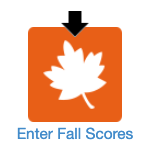
Next, when your benchmark window is open, you'll see the icons labeled "Enter [Season] Scores". The current season with an open benchmark window will have a black arrow above it. When ready, click on the season you'd like to enter scores for. (Fall example below)
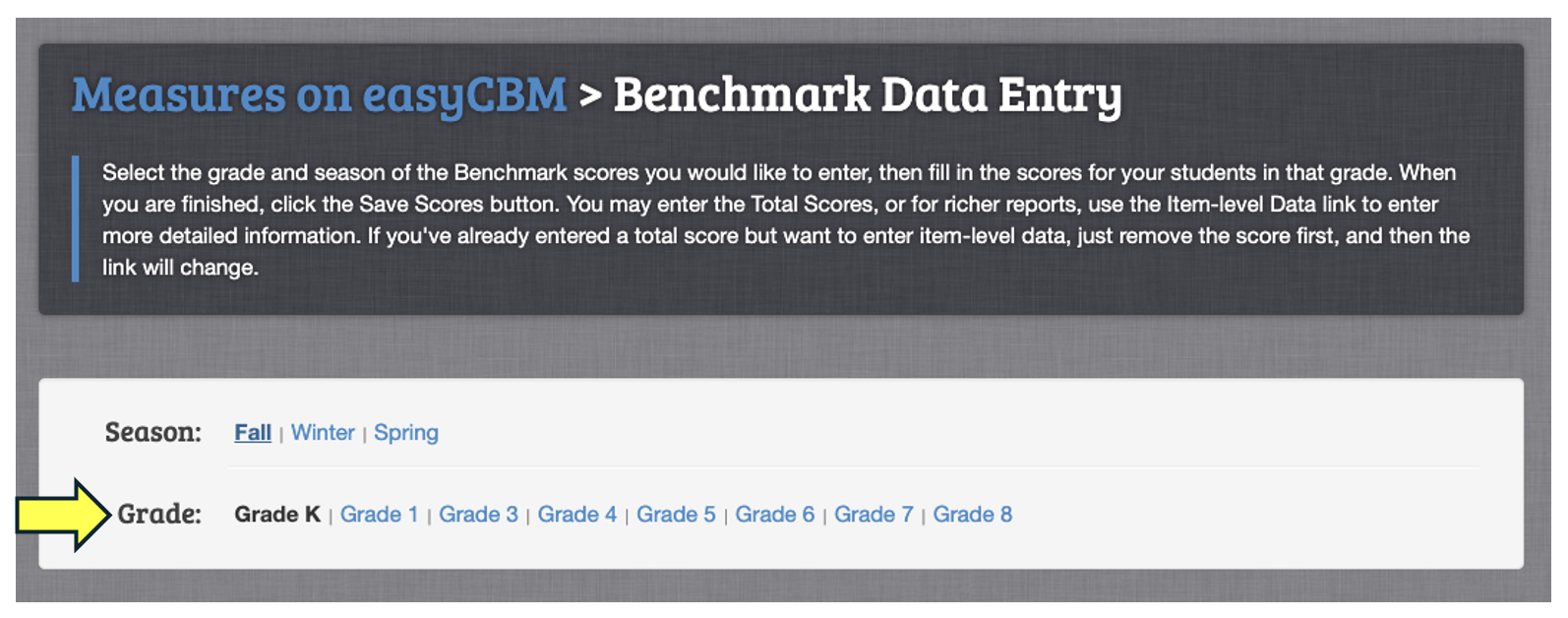
Next, on the "Benchmark Data Entry" page, you'll select the "Grade" of the student you're looking for.
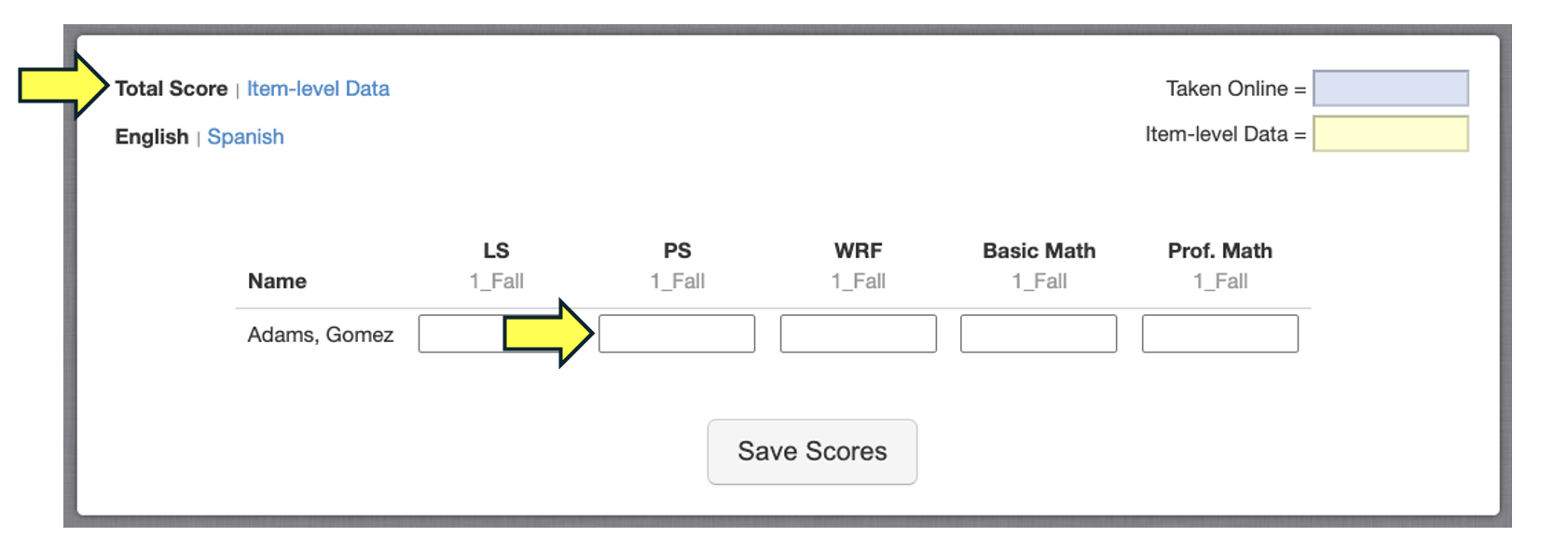
Once you have selected the desired grade, you can enter the "Total Score" into the corresponding box.
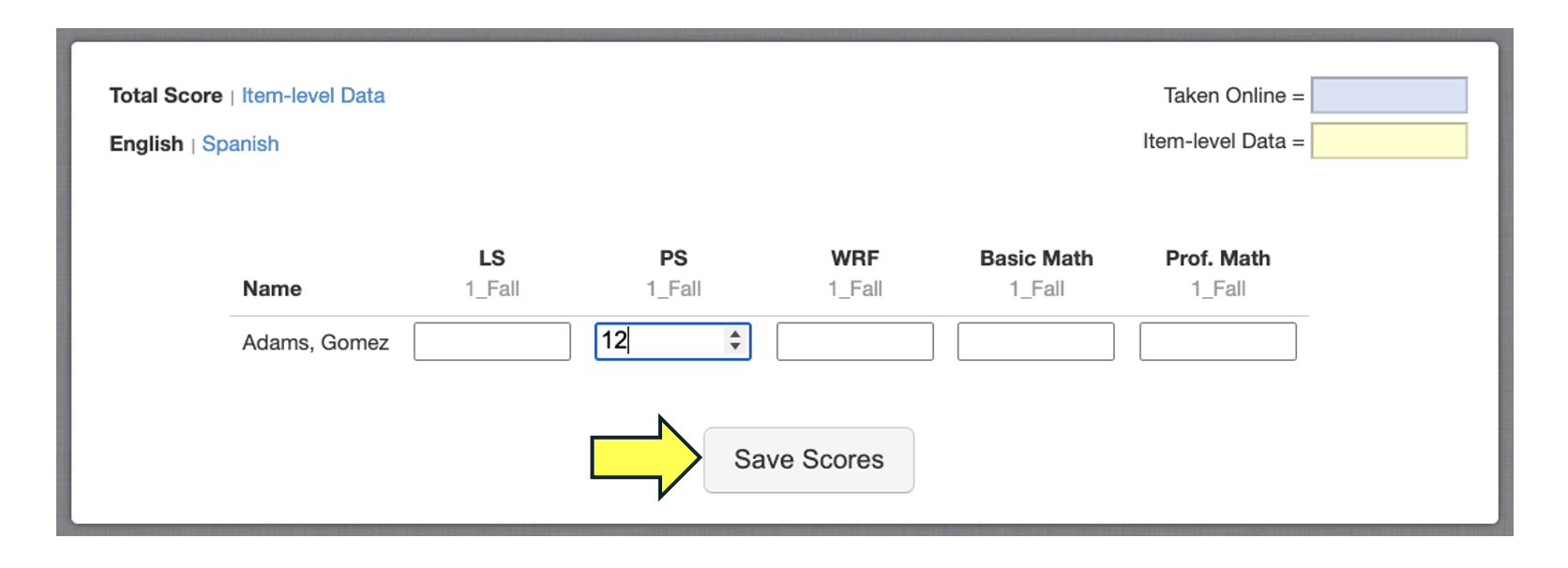
After all scores have been entered, click the "Save Scores" button to finish.
Enter Benchmark scores (Item-Level Data)
First, login to your easyCBM Dashboard and click on the Measures tab.
Select the "Benchmarks" tab.
Next, when your benchmark window is open, you'll see the icons labeled "Enter [Season] Scores". The current season with an open benchmark window will have a black arrow above it. When ready, click on the season you'd like to enter scores for. (Fall example below)
Next, on the "Benchmark Data Entry" page, you'll select the "Grade" of the student you're looking for.
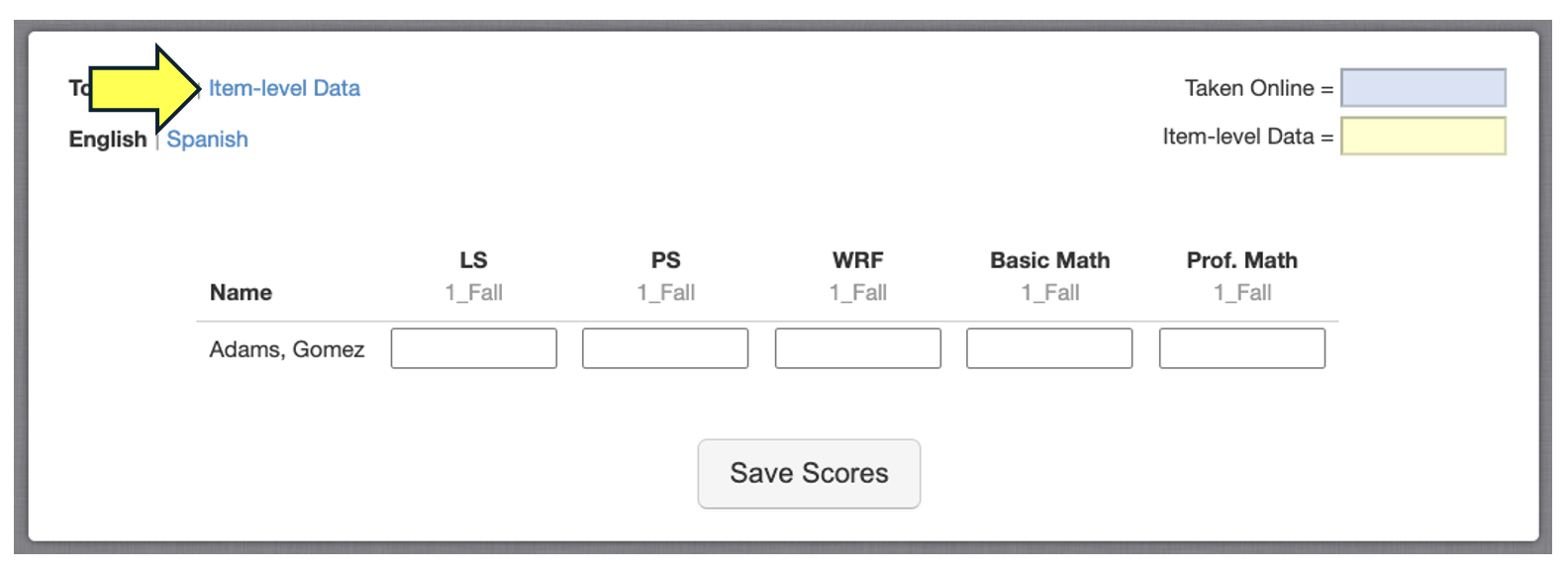
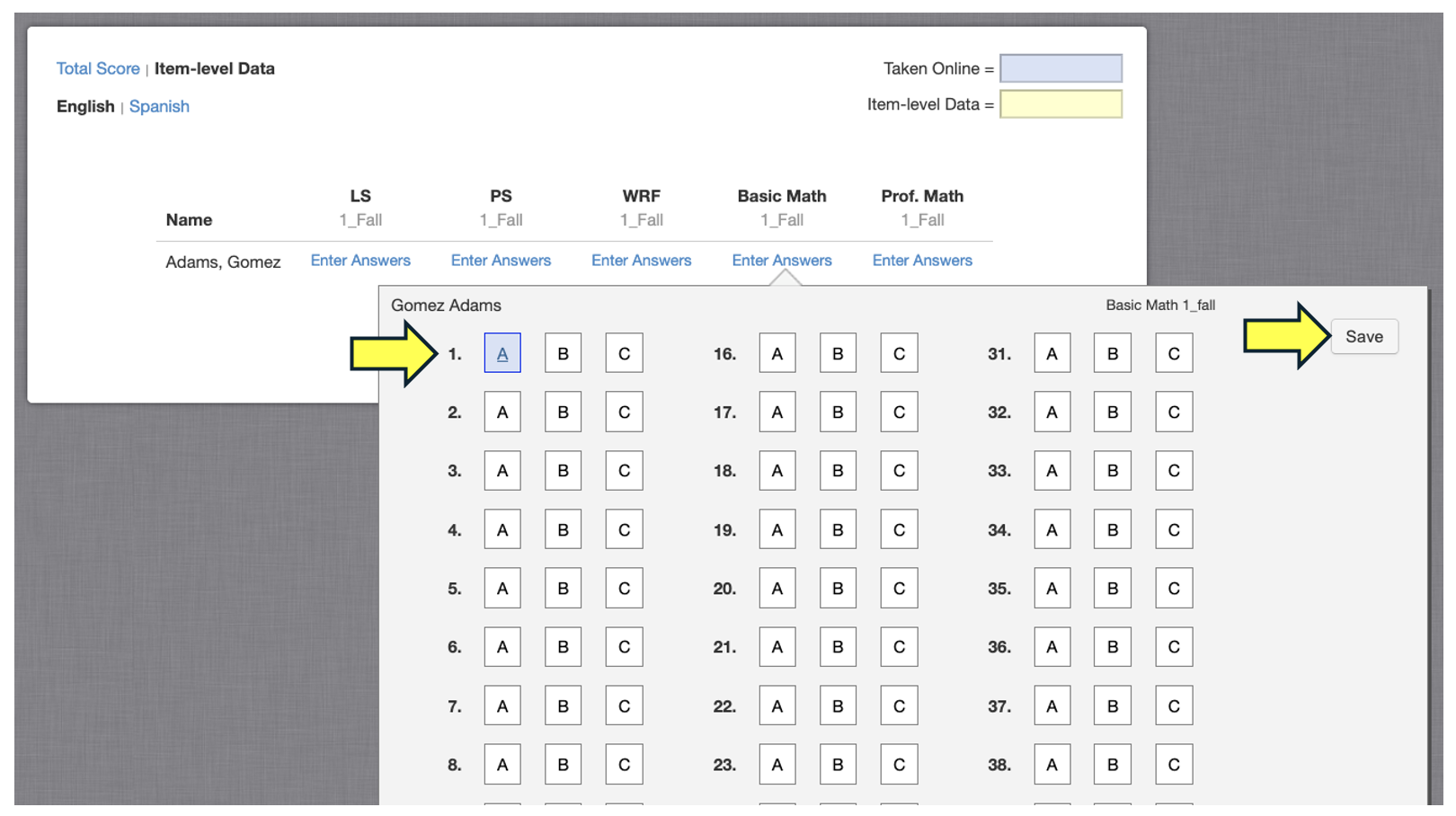
Once you have selected the desired grade, next you'll need to click on the blue "Item Level Data" option in the top left-hand corner of the entry window.
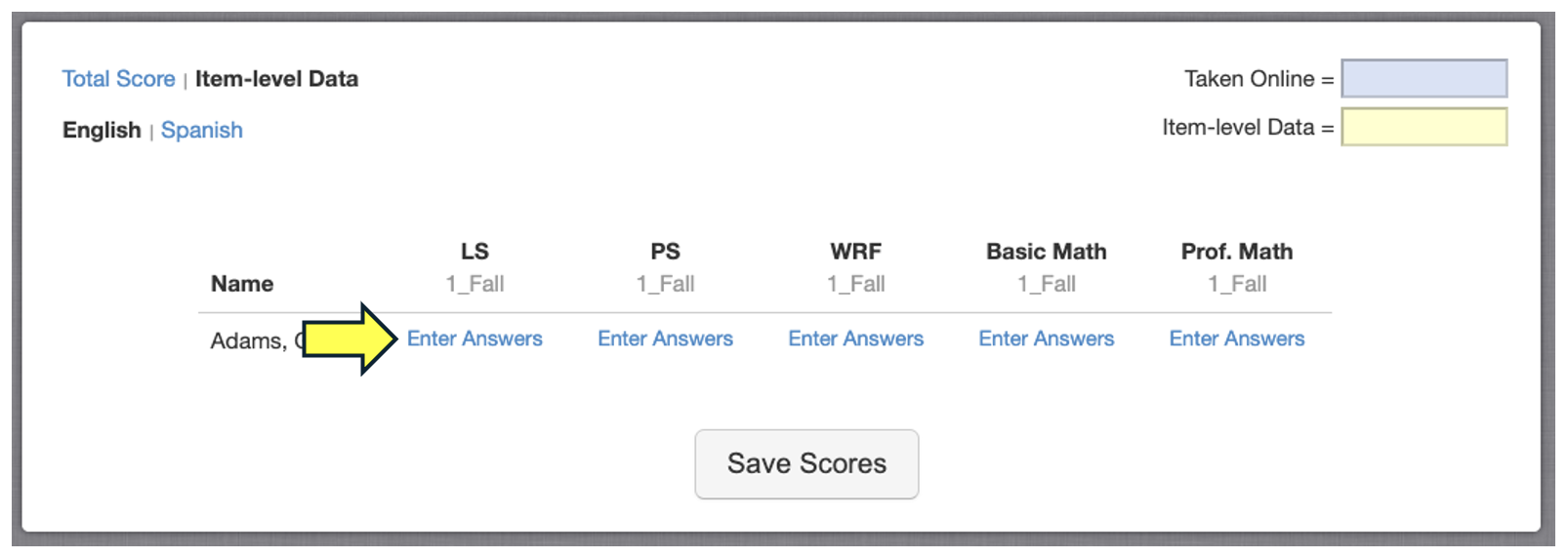
Once selected, you can enter the "Item-Level Data" by clicking on the blue "Enter Scores" link that corresponds with the taken test.
Next, enter in each specific answer and click the "Save" button at the top right of the answer window when finished.
The "Item-Level Data" will now be viewable in the Benchmark and Individual reports sections.
For more information on viewing individual reports, please see: Reports - Individuals
For more information on viewing benchmark reports, please see: Reports - Benchmarks