
Confirm Student Assignments
Once your Benchmark Window is open and/or you have assigned a group or student an "Online Test", you can utilize the "Classroom Link" in the Measures section to confirm the correct assessments are available for your students to take.
First, click on the Measures tab.

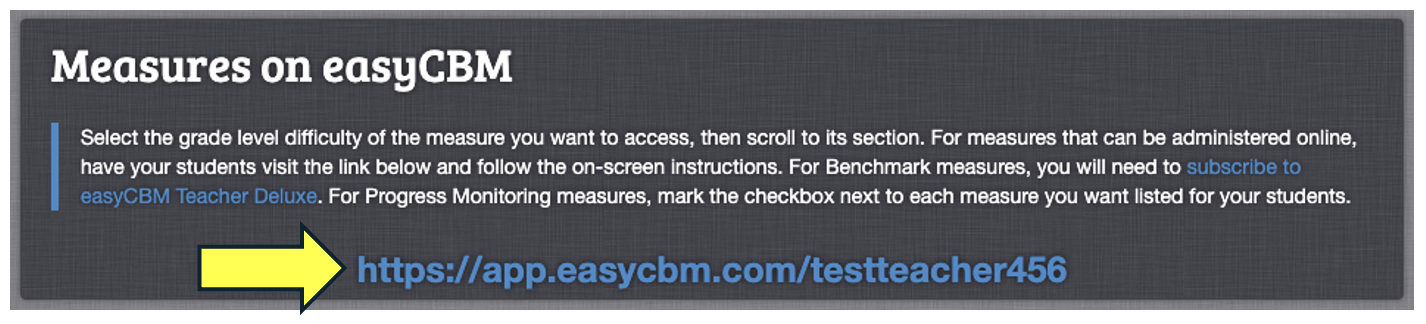
Next, click on the classroom link in the "Measures on easyCBM" box.
Next, you'll be taken to a page with multiple drop-down menus.
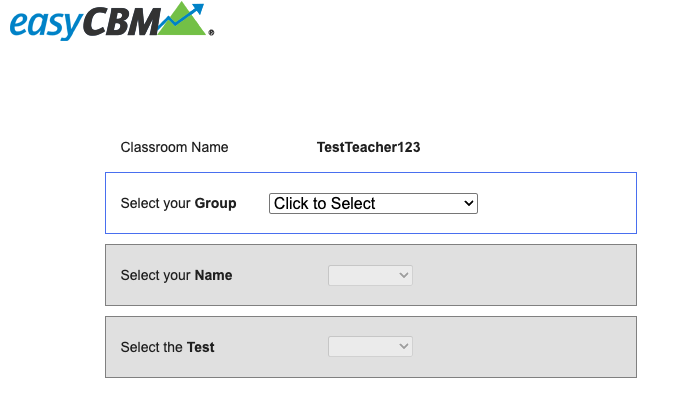
From here, you'll select the desired "Group", "Student", or view a list of "All Students". Next, find the "Student's Name" and when selected, the available assessments will be shown in the "Select the Test" drop down menu.
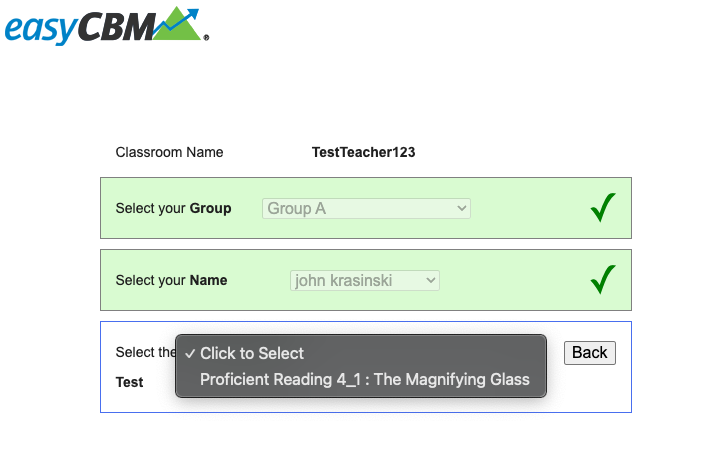
**Note that any test title that appears "Greyed Out" has already been taken by the student and will need to be archived or deleted before the student can retake the assessment.
For more information on Archiving, please see: Archive Student Assessments (Deluxe)