
Entering Scores - Progress Monitoring Measures
Enter Progress Monitoring scores (Timed Measures)
First, login to your easyCBM Dashboard and click on the Measures tab.
Select the "Progress Monitoring" tab.
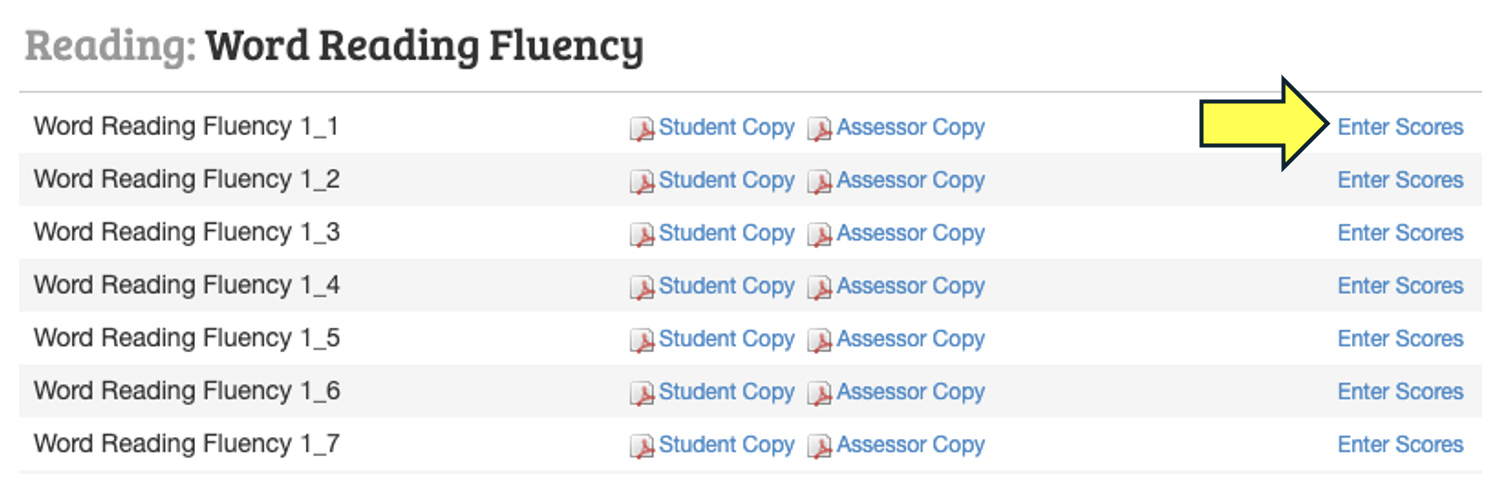
Next, locate the measure you tested on and click on "Enter Scores" to the right of the measure title.
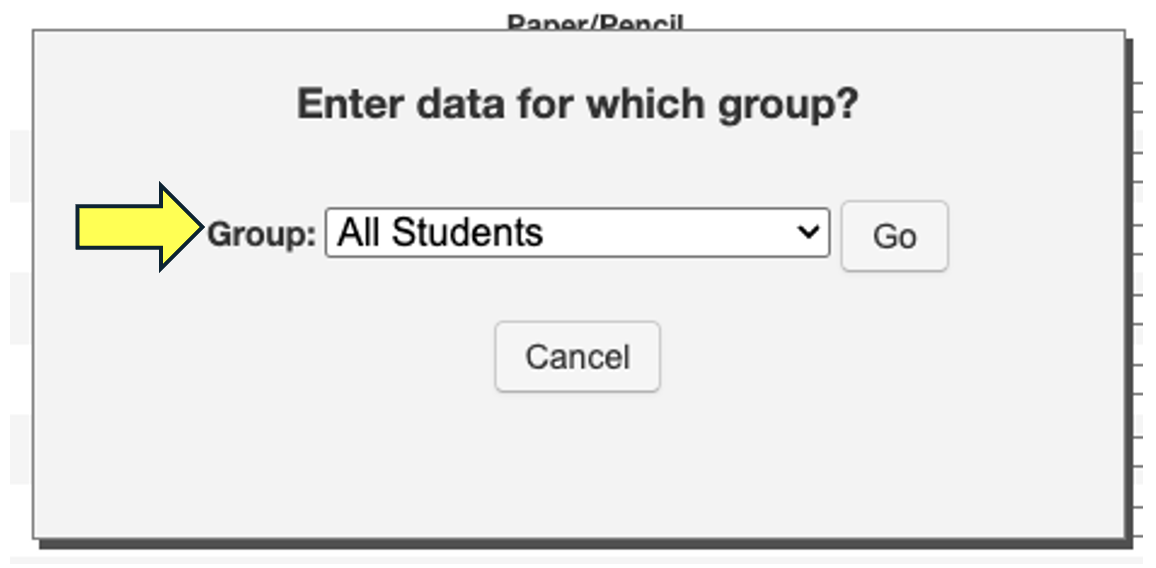
Next, select "All Students" or a specified "Group" in the drop-down box and click "Go".
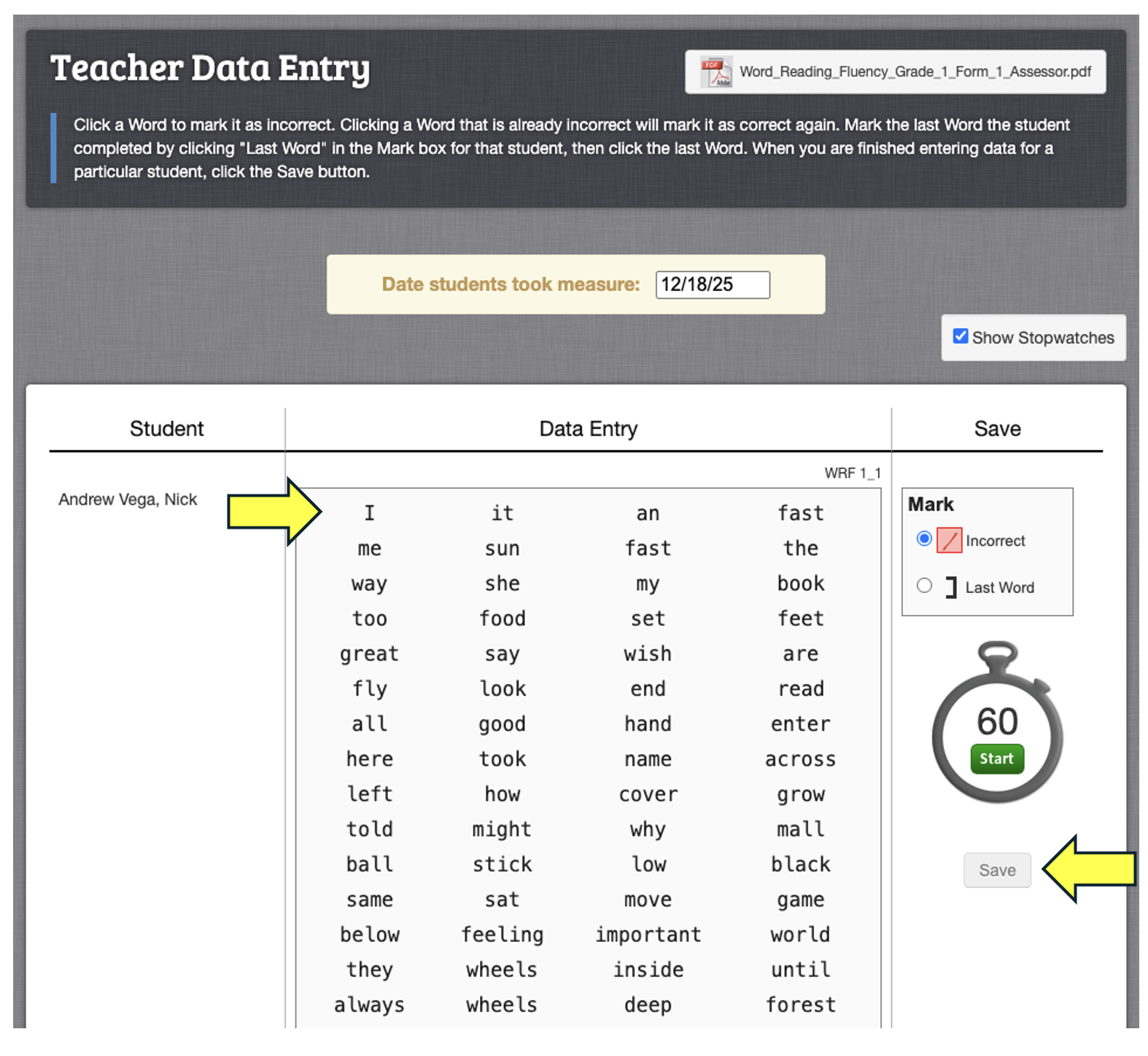
After clicking "Go", you'll be taken to a "Data Entry" page where you can select the answers that the student provided. Click "Save" when finished.
—————————
Enter Progress Monitoring scores (Multiple Choice Measures)
First, login to your easyCBM Dashboard and click on the Measures tab.
Select the "Progress Monitoring" tab.
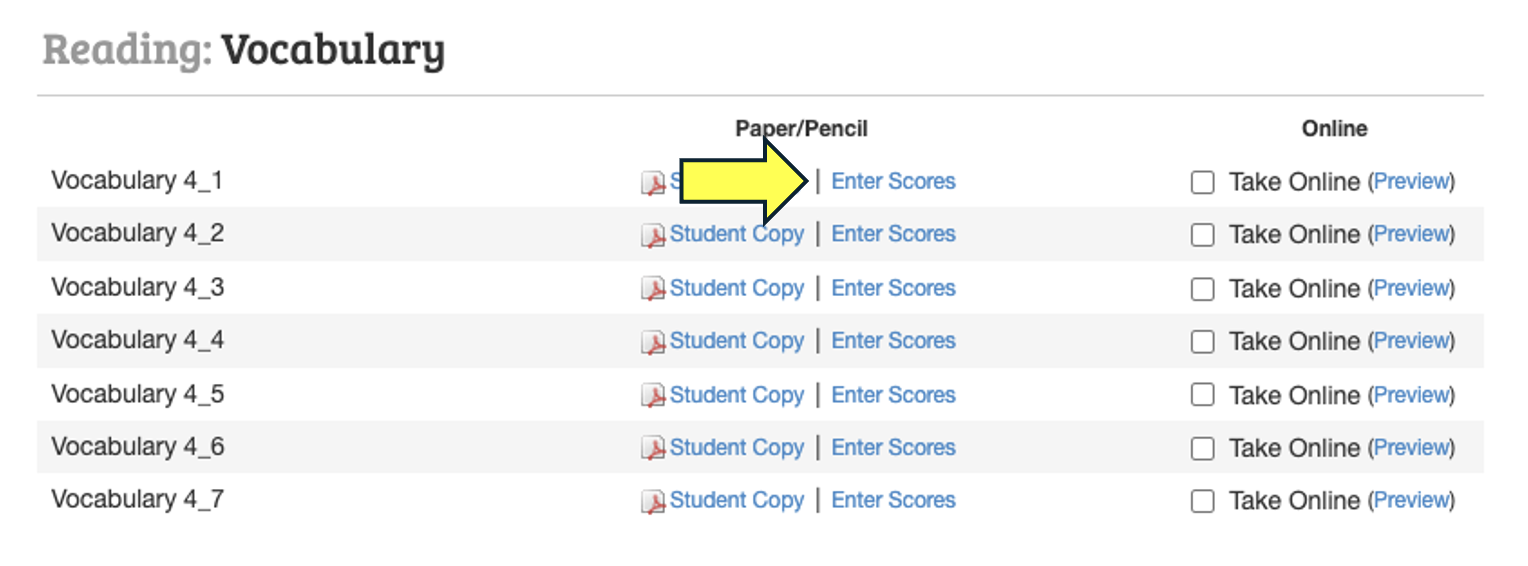
Next, locate the measure you tested on and click on "Enter Scores" to the right of the measure title.
Next, select "All Students" or a specified "Group" in the drop-down box and click "Go".
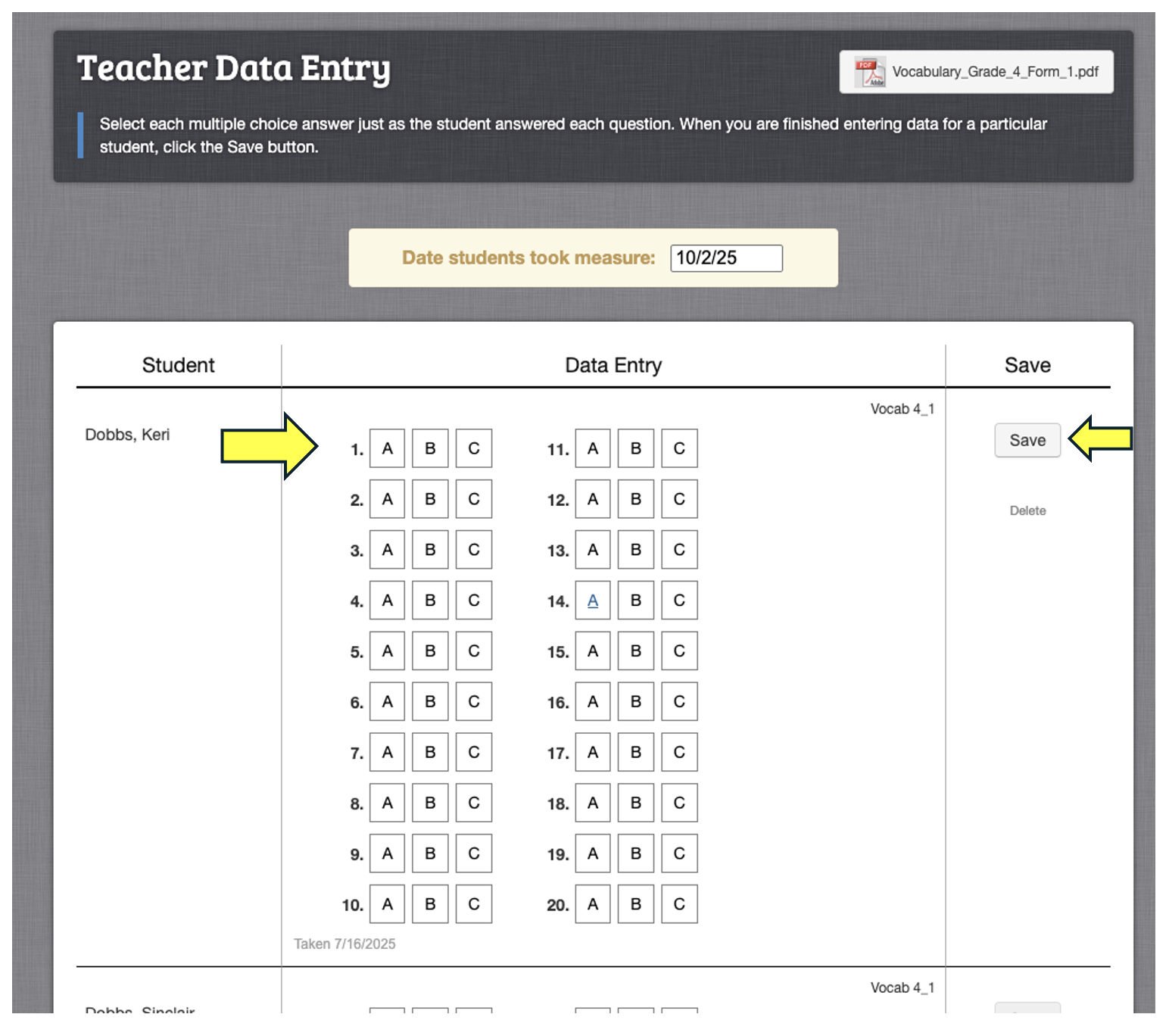
After clicking "Go", you'll be taken to a "Data Entry" page where you can select the answers that the student provided. Click "Save" when finished.
Once saved, you will see the student's score in the corresponding Reports page.
For more information on viewing reports, please see: Group Reports and Individual Reports