
Enable Measures and Features
First, login to your easyCBM Dashboard and click on the Account tab.
Next, in "Account Information", click on the blue "Manage Settings" button.
After clicking "Manage Settings", scroll down the page to the "Enable Measures and Features" section.
You'll notice some boxes may not be checked. Click the "check box" next to the measure you would like to activate.
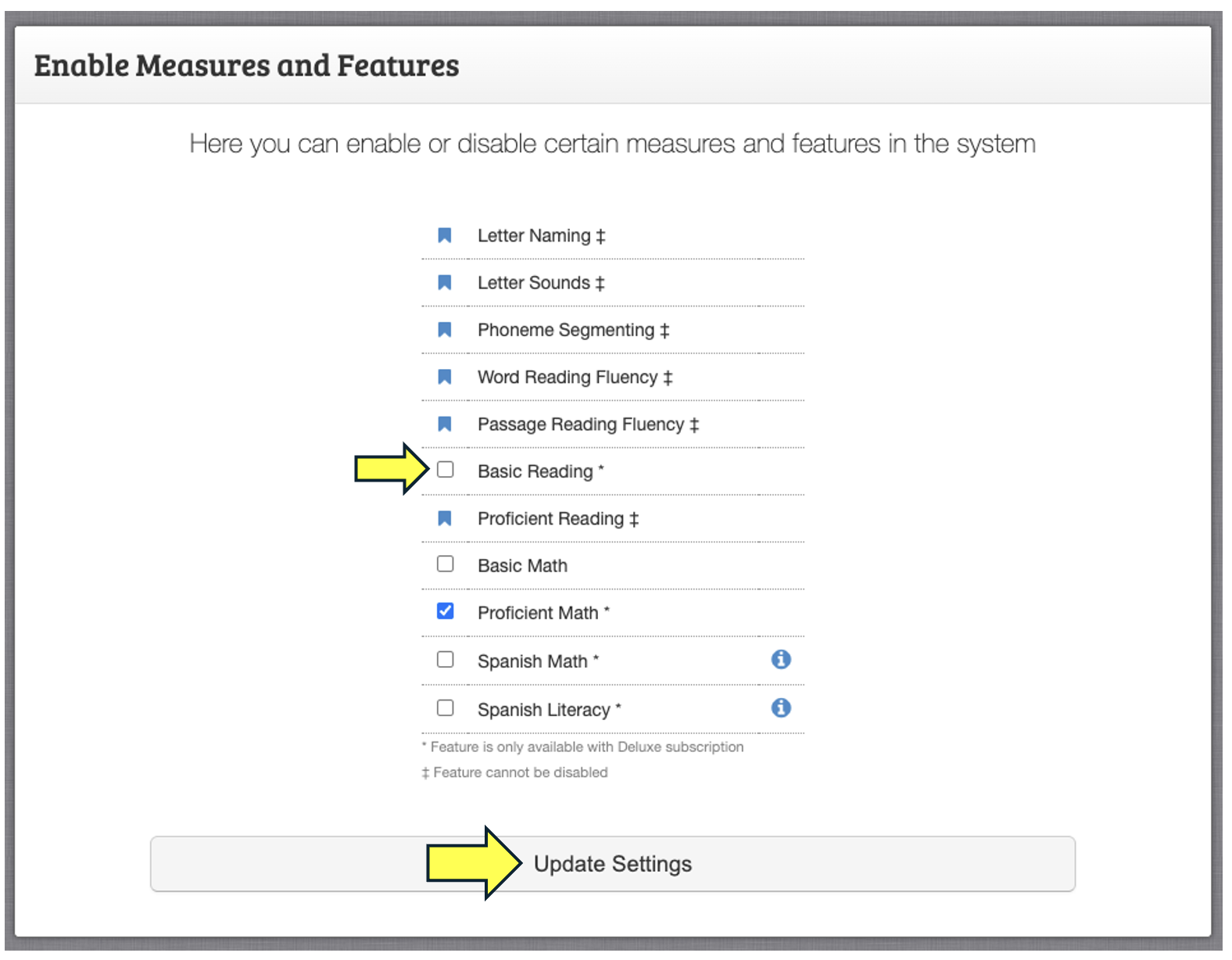
Last, click the "Update Settings" button to save.
After saving, click on the Measures tab in your easyCBM Dashboard and you should now see those measures available to be assigned to your student's.
For more detailed information on the different measures, please see our "Professional Development Courses" located in the Resources section.
https://app.easycbm.com/teachers/auth/resources.php
-
Using the Early Literacy Measures
-
Using the Reading for Meaning Measures
-
Using the Spanish Reading Measures
-
Using the Math Measures