
Create Simple Intervention
First, to see a list of intervention records for a specific student, login to your easyCBM Dashboard and click the Interventions tab.
Next, in the "Template View for Instructional Interventions" box, click the blue "Simple Intervention View" button.

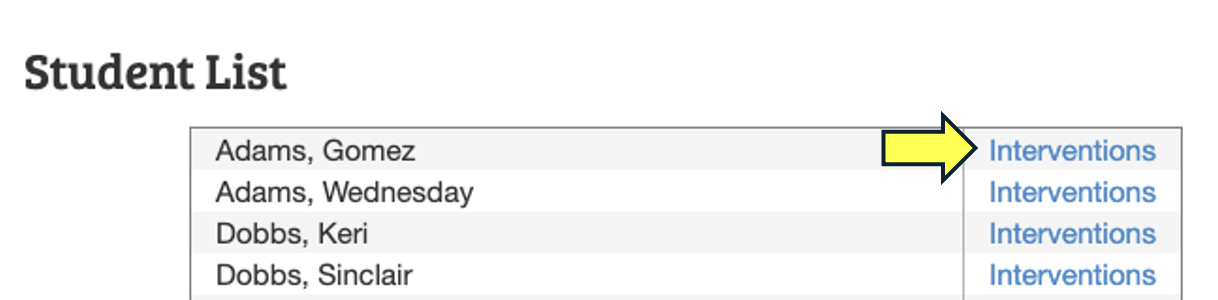
After clicking on the "Simple Interventions View" button, your "Student List" will pop up. Locate the student you would like to create an intervention for and click the blue "Interventions" link to the right of the student's name.
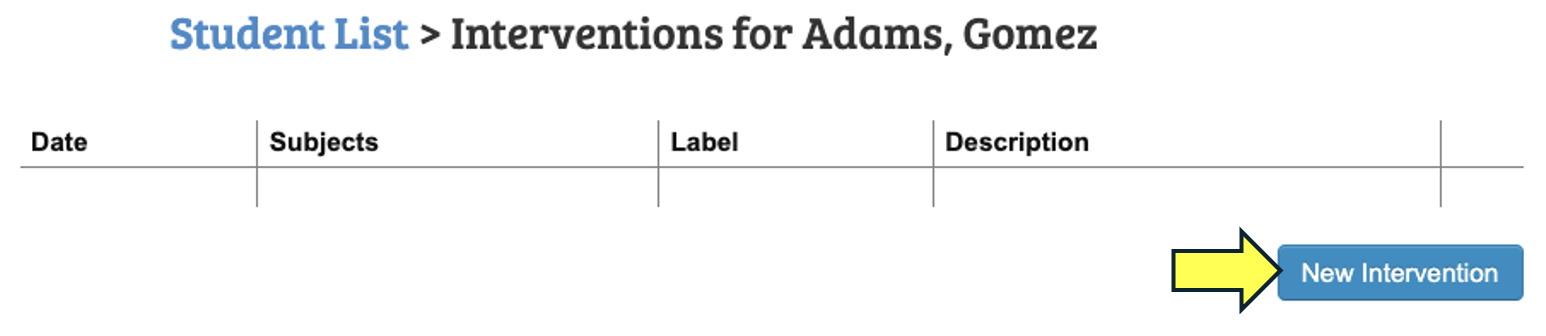
Here you can edit or delete existing records, or you can add a new record by clicking on the New Intervention button.
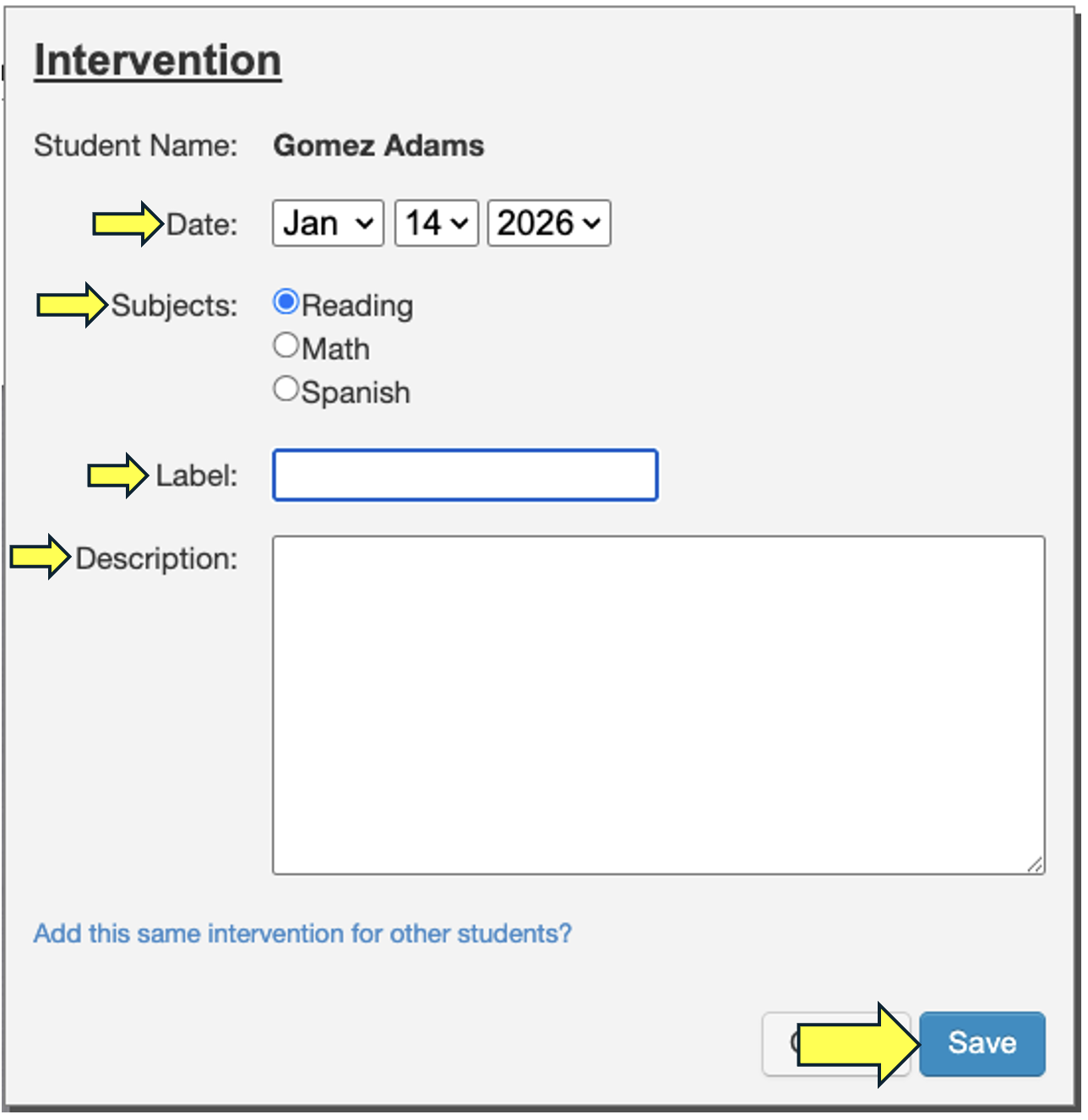
In the new window that opens, you will enter the date on which the intervention begins, the subject to which it applies (Reading, Math, or Spanish), a label for the intervention, and a description. You can assign this same intervention to other students by clicking on the 'Add this same intervention for other students?' link at the bottom of the window. When done, click on the "Save" button to finish.
For more detailed information on Student interventions, please refer to Chapter 21 in the easyCBM User's Manual: Assigning Students to Interventions