
Add Student to Account
Add a Student to your account
Login to your easyCBM Dashboard and click on the Students tab.
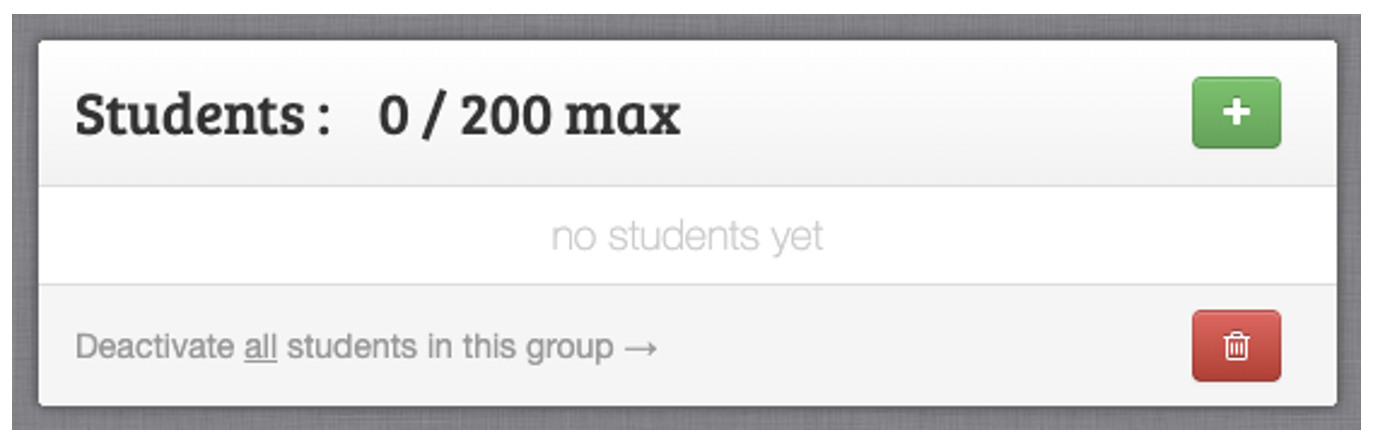
Next, locate the column on the right titled "Students"
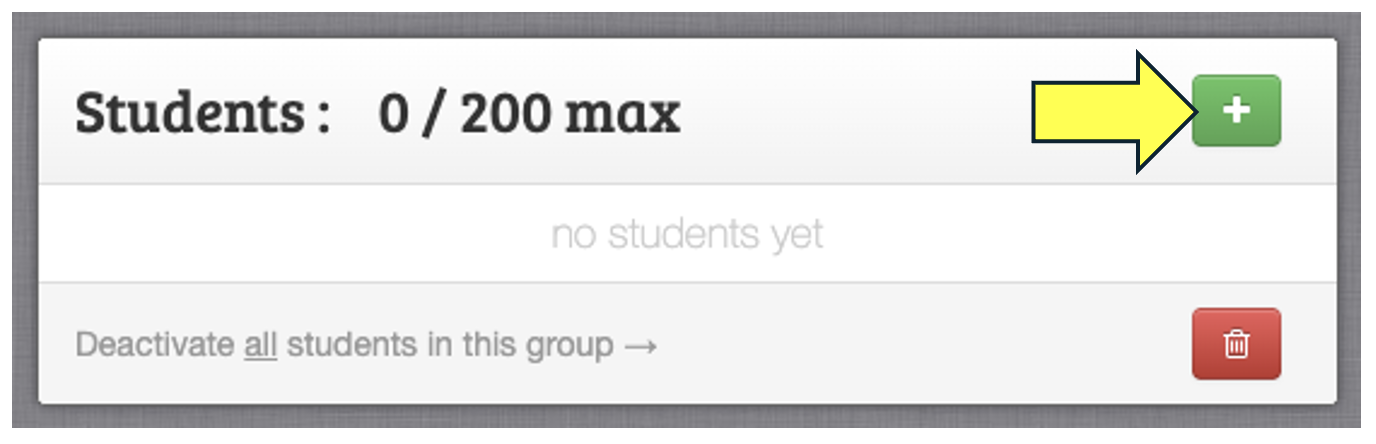
To get started, click on the green "+" icon to the right of the Students header.
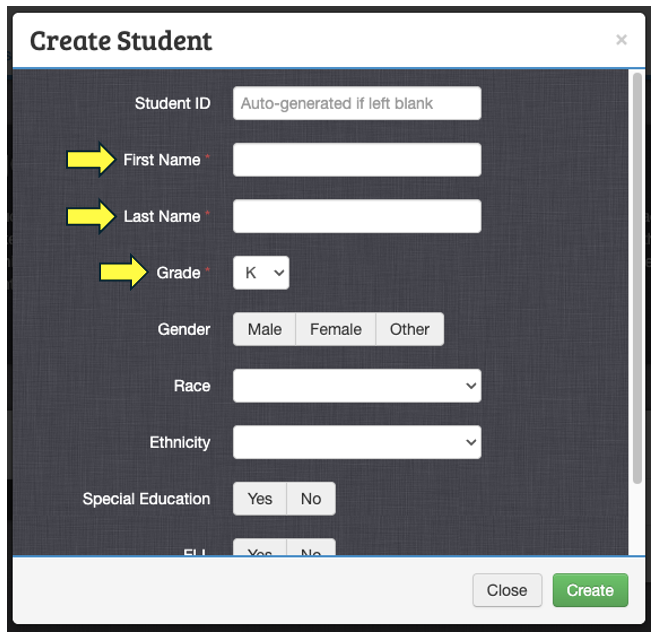
Next, the “Create Student” box will pop up, here you can fill out the student information. Notice that the First Name, Last Name, and Grade fields are all required and if you do not enter a number in the "Student ID" field, the program will auto-fill this box with a randomly generated number.
Last, when you're finished entering in the data, click the green "Create" button to save.

Repeat these steps to add any additional students to your account.